Showing posts with label Registry. Show all posts

Monday, 9 January 2012

Tutorial: How to undelete a Registry key

Tutorial: How to undelete a Registry key

How to undelete a Registry key

Editing the Registry can be a dangerous business. Not only are you playing around with some of the most important settings on your PC, but there's no easy way to reverse whatever changes you might make.

And so if you delete something accidentally, then you could be in serious trouble.

It doesn't have to be that way, though. Deleting a Registry key is a little like deleting a file; you may not be able to see it any more, but its data is still there on your hard drive.

And so, if you equip yourself with the right program, and act quickly, then you may be able to recover the lost Registry key (or keys) and get your PC back in working order.

One of the best tools for Registry recovery is yaru (Yet Another Registry Utility). Grab yourself a copy, unzip the download file and run yaru.exe to begin. (Windows Vista and 7 users should run it as an administrator; right-click yaru.exe and select "Run as Administrator".)

You won't see any Registry values immediately because yaru works offline, and you'll need to open the relevant hive file first. To open HKEY_CURRENT_USER, say, click File > Open User Hive (local) and choose your user account; to open HKEY_LOCAL_MACHINE\Software click File > Open Software (Local); to open HKEY_LOCAL_MACHINE\System click File > Open System (local), and so on.

The tree for your chosen section of the Registry should now appear, and at the bottom of this will be a branch called Deleted Keys. Open this, browse through what's on offer, and with any luck you'll find your deleted settings.

There are no guarantees, though. If you don't act quickly after deleting a setting then there's a chance it may be overwritten by some other value, and that's what has probably happened here. Confirm that you really are looking in the right area of the Registry, and if so then you'll need to look at some other possibility for recovery.

System Restore will restore your entire Registry back to a previous version, for instance, and if you've a full system backup then that may also help.

Export and restore

If yaru managed to find your lost settings, though, then you'll need to export these in a format which can re-imported into your current Registry. And that only takes a moment. Just right-click the top-level lost key and choose the appropriate export option, which will probably be "Export keys to file [Recursive]"; this means export everything beneath this level to a Registry file. And save the results to a file called "recover.reg" (or something similar) on your desktop.

With that done, now find and double-click the file you've just saved. Windows will warn you that setting a block of Registry keys in this way can be dangerous. If you're 100% sure that you want to do it, though, click "Yes", they'll be imported, and that's it - your lost Registry settings have all been recovered.

You do need to be careful with this technique. You shouldn't assume it gives you leeway to freely delete whatever Registry settings you like, for instance - there's no guarantee yaru will be able to recover any particular value.

And you also have to be careful in deciding what to restore. If you make a mistake there, restore the wrong Registry keys by accident, then you could make your situation even worse. If you're at all unclear about any of these steps then make sure you get yourself some insurance by running System Restore and making regular system backups.

For the most part, though, yaru is an easy way to restore lost Registry keys. Powerful yet compact (the executable file is only 1.4MB), it's packed with powerful features, and is well worth a place in your portable troubleshooting toolkit.


Read more...

Thursday, 22 September 2011

Facts about Windows Registry You Must know

The Windows registry on your Windows computer is a feature that will help you to see how the configurations to your Windows system are working. This works to store information on how your system is configured, the preferences you have and all hardware and software preferences that you use.
What is your registry about?

The best way to consider the Windows registry is that it is a capsule of the way how an individual computer works with the Windows operating system. It is a critical function that all Windows users should consider.

Instructional values

The Windows registry will feature a series of values. These values are arranged with particular instructions in mind. These include instructions that relate to how different programs are going to operate when in Windows. This includes details on what programs are preferred on your system.

Registry keys

Keys are included in your registry. Keys feature individual menus that relate to different functions on getting different programs to work. This includes smaller functions that are used in different programs.

Registry hive

The hive is a critical point that you should be using in the registry. This part of Windows features a series of small spaces that include individual folders that contain keys and values for individual programs.

You will find many different hives in your registry. These include individual hives for your current user settings, other user settings and details on the current configuration that your computer uses. These factors are all used to help with getting your computer to run properly and with the specifications that you particularly want to use. Every single individual hive features many important things to consider.

Editing your registry

A good point about your registry is that you can edit it with the Windows Registry Editor tool. This is a program that is included in Windows and will provide you with details on what is in your registry. You can configure the registry in several ways.

Backing up your registry

Of course, you will need to make sure that you back up your registry. You can create a backup of your registry to help you out with keeping your website working as well as possible. It also helps to ensure that you understand the programming language in your registry to ensure that it is going to work as well as possible.

You may get some registry options to work with a restoration function that involves moving your registry back to an earlier time. This is a feature that is featured on the Windows XP and 2000 operating systems. You may need to use an MS-DOS prompt if you are using an older operating system. The rules vary by all types of operating systems and should be reviewed before you try something.

The Windows registry on your computer is an essential part of your computer to consider. The registry will help you out with getting your computer to run as well as possible. It can also be controlled with ease.

Author Bio: David is a FreeLance writer and SEO Enthusiast.He also works for clickdesk a place where you can get one the best Live Help support software.

Read more...

Monday, 3 January 2011

Importance of Registry Optimizers or Registry Cleaners

You must have already heard about registry optimizers or registry cleaners and its effect on a computer's performance? It seems these programs are just hogging up our computers' RAM thus slowing our computer and there you go just waste our money. I personally had that opinion but has drastically changed my mind when I tried using a registry cleaner. Let us know the importance and benefits of having a registry optimizer installed on out computers.


What is a Registry Cleaner or Optimizer?

A registry cleaner or optimizer is a software that fixes registry issues of your computer like empty and broken registry entries since your computer greatly depends on the correct entries and configuration of the registry. An anomaly in the registry can cause unwanted behavior of your computer resulting to slow startups, slow reaction in clicking or opening programs, copying, moving, deleting of files, shutting down and many other undesirable things. This can somehow be FIXED or RESOLVED by running a registry cleaner or optimizer. And So far, the best that I have used and confidently using is regcure.


What are the Benefits of Using Registry Optimizers or Cleaners?

Registry issues or faults are or can be caused by virus infection, malware, trojan, adware, improper installation of programs, program updates, operating system and program tweaks, installation or updates or device drivers, games, chat clients and many other applications. These changes can occur with or without our knowing. With these changes,which most are undesirable can cause as mentioned earlier contribute to general slowing down of your computer's performance or worst can cause your computer to be inoperable.


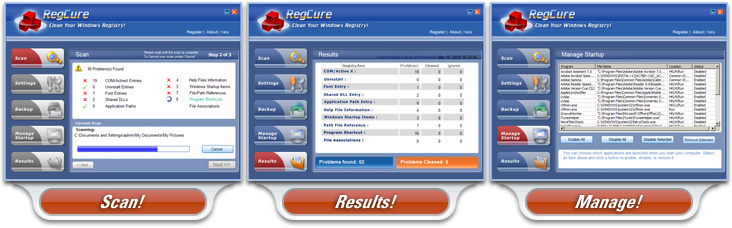
regcure registry optimizer or cleaner


Are There Free Registry Cleaners or Optimizers?

Yes of course and I have used Eusing before and I find it just fine. When using the free registry optimizer, as observed it has limited capability to resolve registry issues. You may want to try these free registry optimizers first before acquiring a relatively good one. Again, I strongly suggest you choose Regcure. I should be suggesting another registry optimizer or cleaner if Regcure hasn't able to meet my expectations.

Read more...

Sunday, 2 January 2011

Know the windows registry

type="html">Registry is a database that is composed of a hierarchy that has information about a system on the windows, for yag already proficient with the computer would have no difficulty in this matter, but for you beginners info on the registry is very important. Registry is also different each different windows, different from the Windows NT registry is also different on Windows 9x, besides having a physical file, the registry also has a structure and can be explained that the registry has a few saplings.

On windows there is a 16 Bit yag components useful for editing the registry and this is his windows registry editor. The so-called registry editor, but it is also the name registry cleaner, clean registry or the so-called registry cleaner is a cleaning process files that settles on the registry, in a process of clean registry we need the help of software called registry cleaner software bsa we downloaded it for free on the Internet, use search engines to search for registry clean. Good work

Read more...

How to Fix a Window Registry

type="html">If you are not sure if you need to registry, ask yourself a few questions. Have you noticed your computer running sluggish lately? Has there been a trend in the number of crashes you experience on a daily basis, or the length of load times for program you frequently use? If you are having these issues, as well as rebooting trouble, blue screen issues, and very slow computer start up times, then you may need to fix window registry.

What's the Big Deal about Registry?

You may assume that trying to fix registry is a waste of time. After all, your programs still work, although they seem unstable. Plus, you can still turn your computer on and access the files you need, even if it is running very slowly. The thing is, these issues will only get worse if you do not fix window registry.

Look at things this way, your registry is a place to store critical items your computer needs for regular operation. These include files, settings required for proper hardware function, specific user preferences and software. To sum it up, if you don't almost every aspect of your computer could be negatively affected. Plus, don't forget the human frustration factor. Do you really want to deal with an extremely slow machine that crashes frequently while you work on it?

Why would I need to Fix Window Registry?

Before you fix window registry, know what this registry does. We already established that it stores files, but how does this cause a problem? The explanation is simple. Over time, those files and settings will accumulate in the registry. As it becomes larger, your computer will have a difficult time handling the sizable data base. The result will be unnecessary strain put on your operating system and hardware.

I want to Fix Window Registry, How do I do It?

Now that you have determined the problem, it is time to figure out how to fix window registry. Start by performing a free scan to detect problems and errors. These scans come with most software and can often be downloaded from the internet. After the scan, you can see an overview of the problems and what needs done. This will help you determine that you do in fact need.

Repair the Problem

All quality scan software comes with a repair feature. This will allow you to remedy the issues found by the free scan. Go to the problem software and use the repair function. The only thing to keep in mind is that the repair feature is generally only available to paid users. That means the scan was free, but you will have to actually buy the software to use it to fix window registry.

Once you have bought the software and run the repair feature, you should notice a huge improvement in your computer. Once you fix window registry, that excess strain should be removed and your computer will run faster and suffer fewer blue screens and crashes. Remember to check up once in a while to see if you need to fix window registry again in order to keep your pc running optimally.

Richard Cidar of RegistryCleaner-User-Reviews.com, specializes in helping individuals and businesses choose the most effective pc cleaner. Richard, an ex software engineer of leading giant Microsoft, now conducts independent reviews of new pc registry cleaning services in the market to make sure you get the best value registry cleaners that work. Check out actual user reviews of all leading registry cleaning sites at

Read more...

Tuesday, 30 November 2010

How to Restore Registry from Backup File?

After we backup registry by creating a file, it is no use doing this without knowing how to restore registry from the backup file. We can do it in a very easy way by using Import command which is in the Regedit Software. (If you don’t know how to create the backup file, Please Read “Backup Registry …“.)

  • Open Regedit Software. Know how to do, please read “Edited Windows Registry Tool …” .
  • Click on File > Import
  • Choose the registry backup file which is in dot reg (.reg) format.
  • Then click Open.
  • Now the registry is recovered from your backup file
However, we can restore the registry in another way. If your backup file is in dot reg (.reg) format, you do not need to open Regedit software for registry recovery. You just double-click on the backup file and then click “Yes”.

Source Information:
www.computerfreetricks.com


Read more...

Labels

(Electronics) 2011: 2012: 3.4GHz 400MHz 4x512 AMD's AMD’s ASRock Adapter Alienware Amd processors Analysis Android Angry Announced Announcement Antec Apple Apple's Arctic Arrives Aspire Athlon Audio Battle Benchmarked Biostar Blackberry Blu-ray Bluetooth Bridge Broadband Browser Budget Cache Chromebook Compound Computer Computers) Computex Concept Cooler Corsair Crysis Dell's Design Desktop Desktops Details Devices Diamond Digital Display Download Drive External Extreme Facebook First Fujitsu Fusion Future Galaxy Gaming GeForce Gigabyte HSFPHASECM Honeycomb India Indian Keyboard Keyboards Keypad Kingston LGA1155 LGA1366 LGA775 Laptop Laptops Latitude Leaked Lexmark's Light Llano Logitech M2N-SLI MSI's MSM8660 MacBook Master Medal Media Medion Mini-Review Mobile MotherBoard's Motherboard Motherboards Motorola Mouse Multimedia NC215S NTLDR NVIDIA NVIDIA's National Netbook Netbooks Nexus Nokia Non-ECC Notebooks Offers Optical Optimus Option Overclock Overclocked PC2-5300 PC2-6400 Panda Panel Patriot Pavilion Performance Phone Plans PlayStation Portable Postpaid Power PowerPC Preview Preview: Price Prices ProBook Processor Processors Project Projector Propus Qosmio Quad-Core Qualcomm Quick RadTech Radeon Rates Razer Registry Released Releases Retail Review Review: Reviews Rupees Rupess SDRAM SODIMM Samsung SandForce Sandy Satellite Seagate Select Sensitive Series Series™ Server Shuttle Silent Silicon Silver Single Small Smartphone Smartphones Socket Solar Solid Speakers Specifications Specs Speed Store Super Tablets Tariff Technology Tegra Testing Thermal ThinkPad Thunderbolt Toshiba TouchPad TouchSmart Touchscreen Tower Troubleshooting Tutorial: Ultimate Ultra Update Verizon Vertex ViewSonic Viliv Vista Vodafone Voodoo Western Wi-Drive Wi-Fi WiMax Windows Wireless Workstations: World Writer Xperia Zotac acpi_call all-in-one announces business camera feature features flash iPad iPhone latest launched launches mobiles module nFORCE notebook omnia overview panasonic player release shutdown special tablet takes touch toughbook unveils webOS white www.phoronix.com

About This Blog

Blog Archive

  © Blogger templates The Professional Template by Ourblogtemplates.com 2008

Back to TOP